This guide covers the currently published App Store version of onTrackTools. It explains how to import VBO and LD telemetry, plan and manage sessions, manage tracks and vehicles, compare laps, create calculated Math Channels, generate track sectors, use video, work with the on-device AI assistants, and troubleshoot common issues.
Table of Contents
- What’s New Since The Previous Help Update
- Overview
- Quick Start
- Platform Navigation
- Main Window
- Sessions List
- Laps Table
- Charts Panel
- Math Channels
- Map Panel
- Video Panel
- Create/Import Session Data
- Session Details and Track-Day Planning
- Editing Sessions
- Track Configuration Editor
- Automatic Sector Detection
- Tracks Manager
- Garage
- AI Assistants
- Siri and Spotlight
- App Settings
- Subscriptions and Store
- visionOS Features
- Troubleshooting
What’s New Since The Previous Help Update
Version 1.4.1 expands Math Channels with statistics, lap comparisons, and vehicle data, adds lap length and average lap speed throughout the app, and brings Spotlight search to far more devices.
- Math Channel statistics: use minimum, maximum, average, standard deviation, normalization, and z-score directly in expressions, scoped to the lap, the selected laps, or the whole session (
lapMax,selAvg,sessionStd, …). See Math Channels. - Lap comparison channels: a Math Channel input can be bound to another lap (the fastest selected lap, 2nd fastest, …), so a channel like
speed - speed_refcompares laps directly. - Vehicle data in Math Channels: vehicle configuration and setup values (mass, tire pressures, …) can be used as inputs, resolved per session from the assigned car, with 20 new units including force in Newtons and pound-force.
- Channels built on channels: Math Channels can reference other Math Channels, and the chart’s time delta is now available as a system Math Channel input.
- Lap length and average lap speed: track configurations carry a nominal lap length, the Laps Table gains an average-speed column, and session rows show the best lap’s average speed and the lap length. See Laps Table.
- Spotlight on more devices: Spotlight indexing and search now work on macOS 15, iOS/iPadOS 18, and visionOS 2 or later (previously the 26 releases), and opening a result takes you to the exact session, note, car, configuration, or setup. See Siri and Spotlight.
- Create with AI* keeps up: the Math Channels assistant understands lap bindings, statistics, vehicle values, and unit phrasing (“in hp”, “in Newtons”), and unit conversions are applied exactly by the app rather than asked of the model.
- Toolbar labels: the “Show toolbar labels” setting now uses the native icon-and-label toolbar style on macOS, and iPad toolbar labels no longer clip.
- Fixes: assistant refinements can no longer silently replace a channel or misfile a note, the Details button on iPhone stays responsive after lap analysis, the Edit Configuration button opens the right editor on iPhone/iPad/visionOS, and creating a session through Siri respects the free version’s session limit.
*The AI features require a device that supports Apple Intelligence running iOS/iPadOS 26, macOS 26, or visionOS 26 or later. Everything else works on every supported device.
Overview
onTrackTools is a multi-platform telemetry analysis app for macOS, iOS, iPadOS, and visionOS. It imports telemetry sessions, detects laps from track start/finish lines, shows lap and sector timing, overlays telemetry traces, synchronizes video, and helps you manage tracks, configurations, vehicles, and setups.
The current app supports .vbo files and .ld log files. Imported sessions can be analyzed locally and synced across devices with iCloud when CloudKit is available.
- Import
.vboor.ldtelemetry sessions, optionally with video from Photos or Files. - Use the built-in track library or create custom tracks and configurations.
- Let onTrackTools auto-detect the track during import when the data matches a known layout.
- Create and reuse start/finish lines, open-course finish lines, and sector split markers.
- Select compatible sessions from the same track and direction for comparison.
- Select up to two laps and compare lap time, sector time, speed, acceleration, logged channels, Math Channels, map position, and synchronized video.
- Manage vehicles, configurations, and setups in Garage, then link them to imported sessions.
- Use iCloud sync for sessions, tracks, configurations, garage data, settings, Math Channels, and Photos-based video references when available.
Quick Start
- Open onTrackTools and choose Add Session from the toolbar or File > Add Session on macOS app menu.
- Select a
.vboor.ldfile. On macOS, double-clicking a supported telemetry file or dropping it on the Dock icon opens the import sheet with the file preselected. - Wait for the track preview to load. If onTrackTools recognizes the session, it may automatically select a matching track from your database or the built-in track library.
- Add optional session notes and confirm the session date. For time and date, leave Load from file enabled when the telemetry file contains a valid timestamp, or set it manually if so desired.
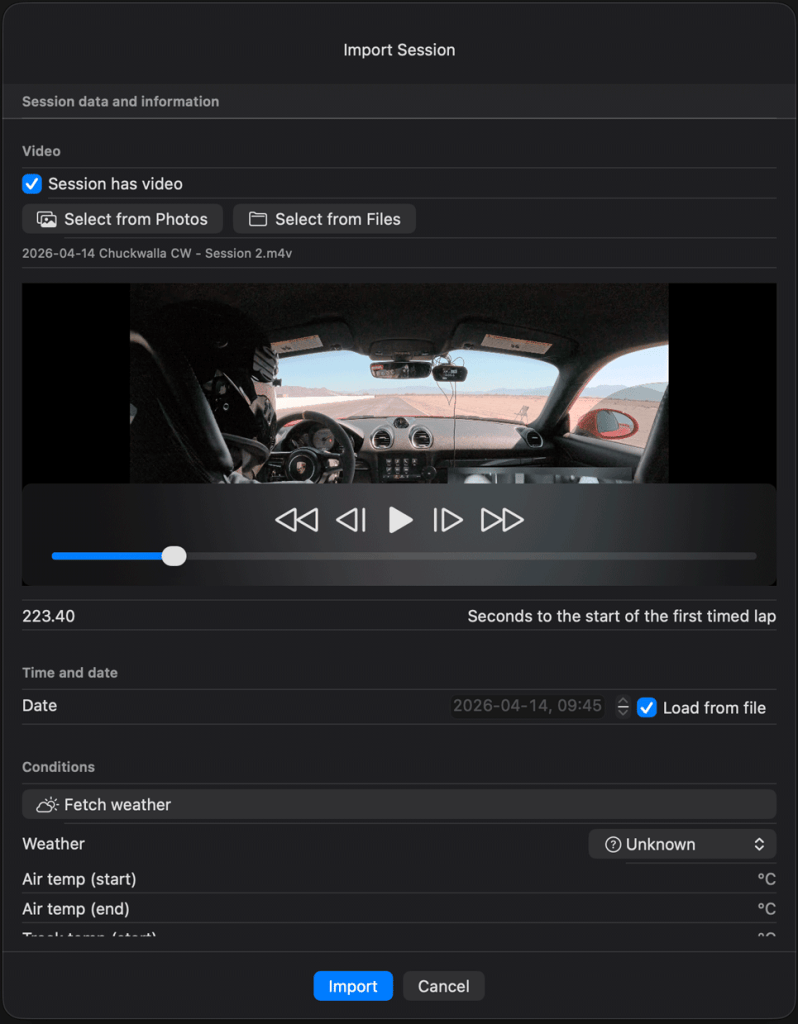
- If the session has video, enable Session has video, then select video from Photos or Files. Set the video offset to the moment the car crosses the start line for the first timed lap.
- Choose or confirm the track and track configuration. If you create a new track/configuration, adjust the start/finish marker in the preview map.
- Optionally link the session to a Garage vehicle, vehicle configuration, and setup.
- Click Import. The session appears in the Sessions list.
- Select a session, then select one or two laps from the Laps Table.
- Use the charts, map, video panel, logged channels, and Math Channels to compare braking, corner speed, acceleration, sector deltas, and car position.
Now, selecting a telemetry file is actually optional: you can also start before any telemetry exists: the same flow creates an empty session from the add Session sheet if a telemetry file is not selected.
This allows you to log the vehicle, setup, conditions, and notes at the track, then attach the data file and video later from the Session Details view.
See Session Details and Track-Day Planning.
Platform Navigation
macOS
On macOS, the main window uses a session sidebar and an analysis workspace. The Window menu includes Show Track Manager, Show Garage, and Show Math Channels. The app also provides separate windows for the Track Editor, Session Editor, Vehicle Configuration Editor, Vehicle Setup Editor, video playback, and Math Channels library.
- File > Add session creates a new session, importing a
.vboor.ldfile or starting an empty session. - File > Migrate Videos to Photos Library… opens the video migration settings.
- Edit > Session Details opens the selected session’s details view (metadata, notes, data files, video, vehicle and setup).
- Edit > Edit track configuration opens the Track Editor for the selected session.
- Window > Show Math Channels opens the Math Channels library.
- View controls the video pane, entry/exit laps, map follow mode, map fitting, and time- vs distance-based comparison.
- Help > On-line Help opens this online help page.
iPadOS
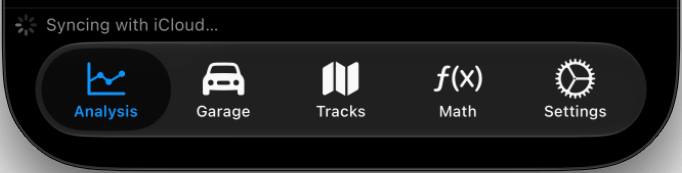
On iPad, the regular-width layout adds a segmented navigation control for Analysis, Garage, Tracks, Math Channels, and Settings where available. The Analysis section uses the session list and analysis workspace. Garage, Tracks, and Math Channels can be managed from their own sections.
iPhone
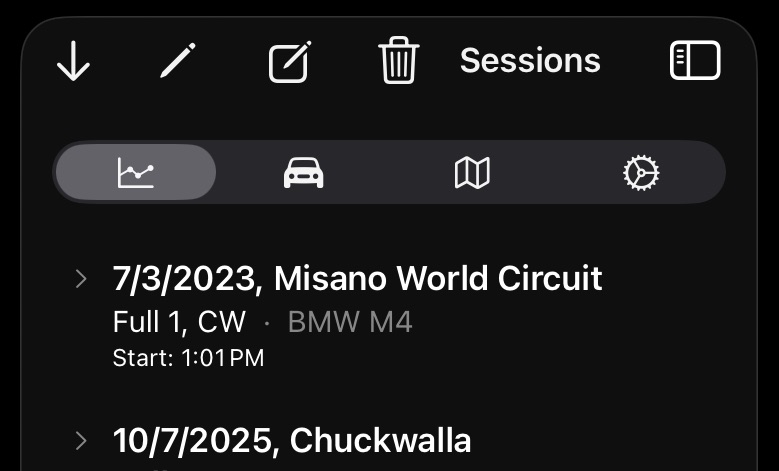
On iPhone, the workflow is intentionally step-by-step. Select a session from the Sessions list, tap View Laps or Compare Sessions, select one or two laps, then tap Analyze Lap or Compare Laps. In portrait orientation the analysis view shows map or video above the charts. In landscape orientation, the toolbar lets you switch between charts and video. Math Channels are managed from the app navigation.

visionOS
On visionOS, session controls and analysis tools are presented as ornaments around the main window. Garage, Tracks Manager, Track Editor, Video, Math Channels, and the volumetric track map can open as separate spatial windows when available.
Main Window
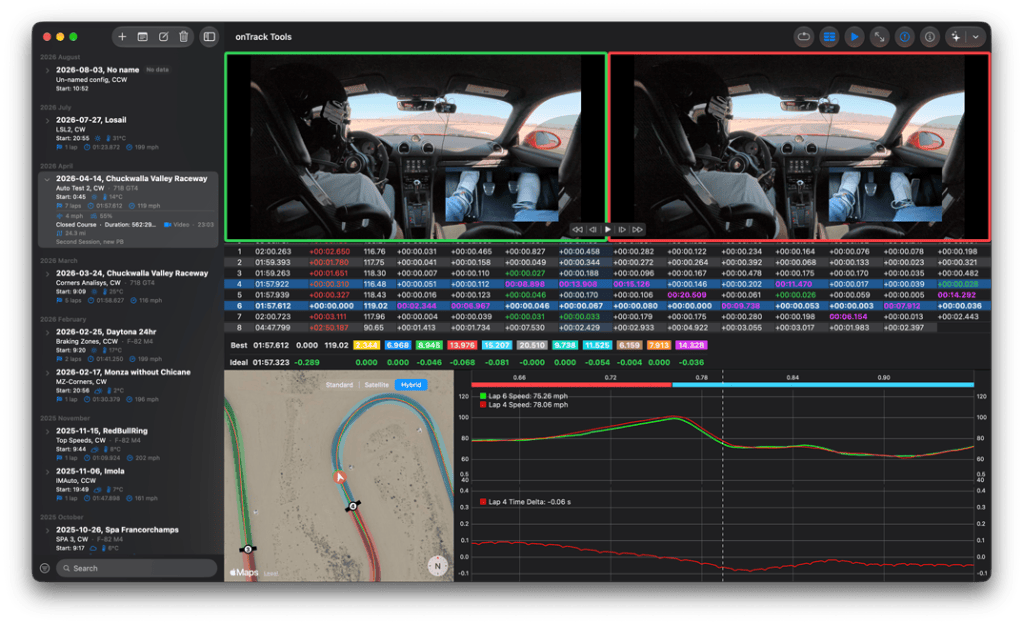
The main window is where you select sessions, choose laps, and analyze selected data. With a session selected, the upper area shows lap and sector timing. The lower area is split between the map and chart panels. If video is available and enabled, the video panel appears above the lap table.
If no session is selected, the analysis workspace displays Select or import a session.
Sessions List
The Sessions list shows every session currently available in the app database. A session is usually created from one imported telemetry file, but it can also be created empty and receive its data later.
Each session row shows the track and date together with the number of laps, the best lap time and its average speed, the top speed, the distance driven, the track’s lap length, and the weather conditions when available. An ≈ sign before an average speed or lap length means the length was measured from GPS data rather than taken from the track library. Use the search bar at the bottom of the list and the list filters to find sessions quickly.
Select a session to load its laps into the Laps Table. You can select more than one session, but onTrackTools only keeps sessions that are compatible with the first selected session.
- Compatible sessions must use the same track.
- Compatible sessions must use the same track direction, clockwise or counter-clockwise, as defined by the track configuration.
- When multiple sessions are selected, the analysis uses the track configuration from the first selected session.
When you switch between session sets during the same app run, onTrackTools restores the analysis state for each set. This includes selected laps, selected traces, sector zoom, scrubber position, chart viewport, map region, map type, and follow-car mode.
Session Controls
- Add Session opens the Create/Import Session sheet. If you are using the free version and already have a session, this opens the Store instead.
- Details flips the workspace between the analysis view and the Session Details view for the selected session. The analysis state is preserved underneath.
- Edit conf. opens the Track Editor for the selected session’s current track configuration.
- Delete moves the selected session or sessions to a soft-deleted state after confirmation.
The free version is limited to the creation and/or analysis of a single session. The Sessions list shows an Unlock full version row when you need a subscription or lifetime purchase to manage more sessions.
iCloud Status
When iCloud sync is active, onTrackTools syncs sessions, tracks, configurations, settings, garage data, and Math Channels through CloudKit. If CloudKit is unavailable, a status bar shows iCloud Unavailable – Using Local Store and the app continues with local storage. While incoming CloudKit updates are being imported, a Syncing with iCloud… indicator may appear.
Large telemetry data is stored in a compressed onTrackTools container to improve CloudKit reliability, especially for large .ld sessions. Keep all your devices updated to the current app version so they can read newly compressed sessions.
Laps Table
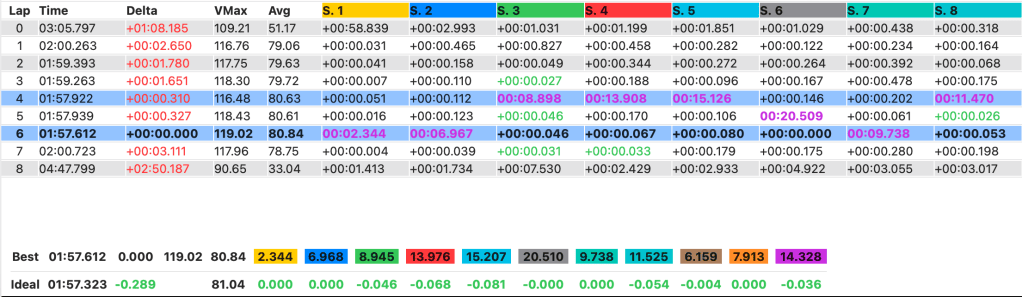
The Laps Table shows the laps detected from the selected session or compatible session set. Select one lap for single-lap analysis or up to two laps for comparison. Selecting the same lap again deselects it.
The table includes these columns:
- Lap: the lap number within the session data.
- Time: the detected lap time.
- Delta: the time difference from the best lap currently shown.
- VMax: the maximum speed during the lap, displayed in your selected speed unit.
- Avg: the lap’s average speed, calculated from the track configuration’s lap length. An ≈ sign means the lap length was measured from the reference lap’s GPS path rather than taken from the track library.
- S. 1, S. 2, …: sector time or sector delta columns. Sector headers use the same colors as the map and chart sector bands.
The best lap is shown in bold. The fastest sector among the visible laps is highlighted in purple text. A sector that is faster than the corresponding sector of the best lap is shown in green text. Clicking or tapping a sector header zooms the map and charts to that sector; clicking or tapping the same sector again returns to the full lap.
Entry and Exit Laps
The entry lap and exit lap are usually partial laps. Use the Hide in/out control or the View menu to hide or show them. Hiding them reduces clutter when you are focused on timed laps.
Best and Ideal Lap Summary
The summary table below the Laps Table compares the best lap against an ideal lap. The ideal lap is calculated by summing the best sector times available in the currently selected session set. The summary shows total lap time, delta improvement, VMax, average speed, and sector-level improvement opportunities.
Charts Panel
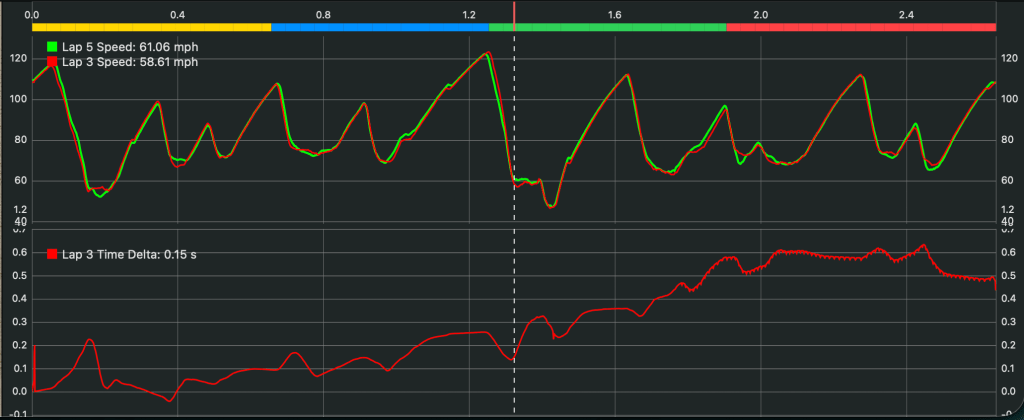
The Charts Panel shows the selected telemetry traces for the selected lap or lap comparison. The default traces are Speed and Time Delta. The time delta trace is most useful when two laps are selected.
Time-Based and Distance-Based Comparison
The chart x-axis can be time-based or distance-based. Time-based comparison aligns traces by elapsed lap time. Distance-based comparison aligns traces by distance along the lap, which is usually better for comparing braking points, apex speed, and acceleration zones. Set the startup default in App Settings, or switch during analysis from the View menu or visionOS ornament.
Data Playhead
The vertical dashed playhead marks the current analysis position. The chart legend shows the values at the playhead. The map car marker and video playback position stay synchronized with the playhead.
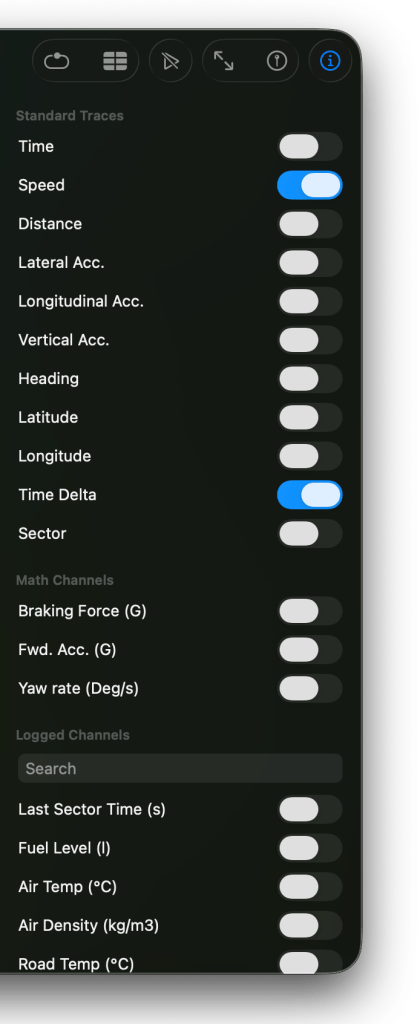
Available Traces
The trace selector only shows traces available for the selected session set. If you select multiple sessions, a trace must be available in all selected sessions before it appears as selectable.
- Standard Traces: built-in traces such as Speed, Time, Time Delta, Distance, Sector, Latitude, Longitude, Heading, Height, and acceleration channels.
- Math Channels: calculated traces you create in the Math Channels library.
- Logged Channels: additional channels imported from the source telemetry file. These are especially useful for
.ldlogs, where available channels depend on the logger or simulator export.
Some files may contain different channel names or may omit optional channels. If an expected trace is missing, confirm that the original file contains a supported channel and that the same channel is present in every selected session.
Trace Selection
Use the Traces control to open the trace selector. Enable or disable traces with the switches in the selector. Logged Channels include a search field so you can find a channel by name. On iPhone, the trace selector opens as a sheet with a Done button.
Math Channels
Math Channels let you define calculated telemetry traces and chart them alongside built-in and logged channels. A Math Channel is evaluated only when it is available for the selected session set and selected in the trace inspector.
Open Math Channels from Window > Show Math Channels on macOS, from the Math Channels navigation section on iOS/iPadOS, or from the Math Channels ornament/window on visionOS.
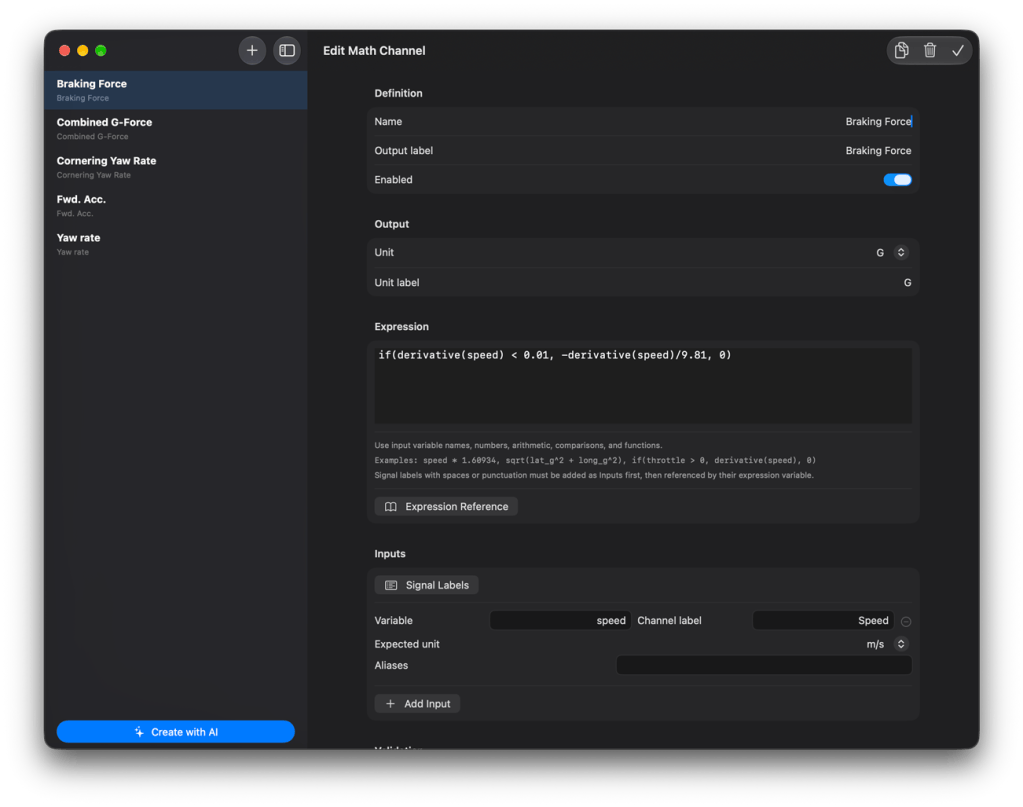
Creating a Math Channel
- Open the Math Channels library.
- Click or tap New Draft to start a new channel definition.
- Enter a Name and Output label.
- Enter a Unit label, or keep it unitless if the result is not a standard unit.
- Write an expression using input variable names, numbers, operators, comparisons, and functions.
- Add one or more inputs. Each input maps an expression variable to a signal: a built-in or logged channel, a vehicle configuration or setup value, or another Math Channel.
- Use Signal Labels to browse the signals available in the selected sessions – grouped into telemetry channels, vehicle configuration and setup values, and Math Channels – and add them as inputs.
- Use Expression Reference when you need the supported operators and functions.
- Check Current Session Preview for resolution and evaluation diagnostics.
- Click Create Math Channel or Save Changes.
Expressions
Expressions support arithmetic operators, comparisons, parentheses, and common functions. Comparisons return 1 when true and 0 when false, which makes them useful with if(condition, trueValue, falseValue).
- Arithmetic:
+,-,*,/, and^. - Comparisons:
>,>=,<,<=,==, and!=. - Functions:
abs,min,max,clamp,sqrt,pow,log,exp, trigonometric functions, rounding functions,if,smooth,derivative, andintegral. - Statistics:
lapMin,lapMax,lapAvg,lapStd,lapNorm, andlapZScore, plus the same statistics over the selected laps (selMin,selAvg, …) and the whole session (sessionMin,sessionAvg, …). See below.
Examples:
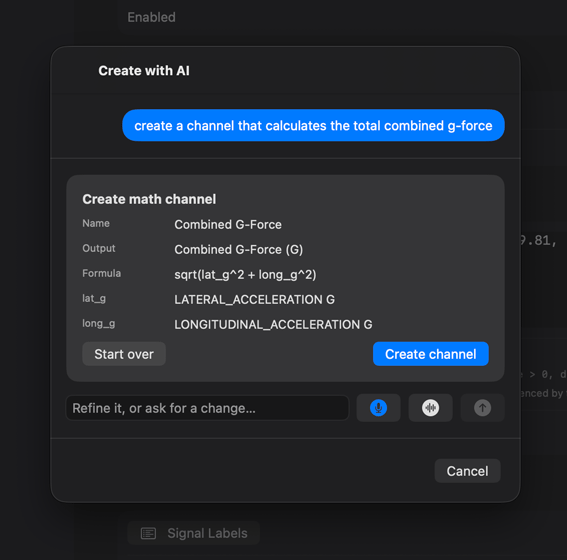
speed * 1.60934sqrt(lat_g^2 + long_g^2)if(speed > 1, derivative(speed), 0)clamp(throttle, 0, 100)
Statistics
Statistics summarize a signal over a scope and return a single value usable anywhere in the expression. Each scope offers minimum, maximum, average, standard deviation, normalization (scales the signal to 0-1), and z-score:
- This lap:
lapMin,lapMax,lapAvg,lapStd,lapNorm,lapZScore– for examplespeed - lapMax(speed)orlapNorm(throttle). - The selected laps:
selMin,selMax,selAvg,selStd,selNorm,selZScore. - The whole session:
sessionMin,sessionMax,sessionAvg,sessionStd,sessionNorm,sessionZScore.
Each statistic takes one argument. The selection and session statistics must be given an input signal directly – sessionMax(v) works, sessionMax(v * 2) does not.
Comparing Laps
Every input has a Lap picker that chooses which lap the input reads: This lap (the default), the Fastest selected lap, or the 2nd, 3rd, or 4th fastest selected lap. Binding one input to another lap turns a channel into a lap comparison – for example speed - speed_ref, with speed_ref bound to the fastest selected lap, charts the speed difference at every point of the lap. The comparison is evaluated on a shared distance base, and “fastest, 2nd fastest, …” follow the same lap-time ordering the chart colors and the time delta already use.
Vehicle Data and Other Math Channels
Inputs are not limited to telemetry. When the session has a car assigned in the Garage, the numeric values of its configuration and setup (mass, power, tire pressures, camber, …) are available as inputs and are resolved per session from the assigned car – the same channel definition evaluates with each session’s own values. Units convert automatically, including the newly added force units (Newtons and pound-force).
A Math Channel can also use other Math Channels as inputs. onTrackTools evaluates them in dependency order and reports circular references in the editor. The chart’s time delta is available as a system Math Channel, so it can be used as an input like any other signal.
Inputs, Units, Aliases, and Overrides
Each input defines the expression variable name, the required channel label, an optional expected unit, and optional aliases. When a compatible unit conversion is known, onTrackTools converts the input before evaluating the expression.
If automatic input matching is not enough for a specific session, use the preview/override flow to map an input to a different available trace for that session. This is useful when different loggers use different channel names for the same signal.
Using Math Channels In Charts
After a Math Channel is enabled and can be resolved for the selected session set, it appears in the Math Channels section of the trace selector. Select it like any other trace. The input traces do not need to be selected separately.
Create with AI
On devices with Apple Intelligence, the Create with AI (sparkles) button in the Math Channels library opens an assistant that builds a channel from a plain-language description – it writes the formula, maps the variables to the signals available in the selected session, and shows a review of the mapping (with warnings for missing inputs) before anything is created. Existing channels can be refined iteratively or modified as a copy. The assistant understands the full feature set – statistics, lap comparisons, vehicle values, and unit phrasing like “power in hp” or “force in Newtons” – and unit conversions are applied exactly by the app. See AI Assistants.
Map Panel
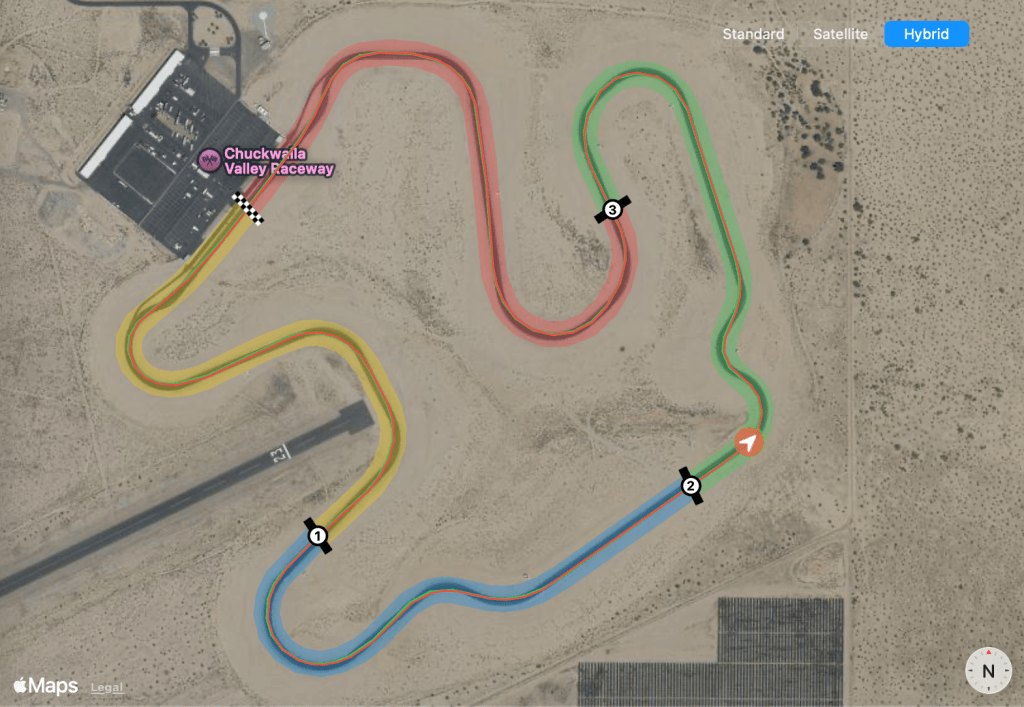
The Map Panel shows the GPS trace of the selected lap or laps. It displays the start/finish marker, optional open-course finish marker, sector dividers, colored sector overlays, and synchronized car-position markers.
When two laps are selected, onTrackTools sorts the compared laps by lap time. The faster lap uses the green trace and marker; the slower lap uses the red trace and marker.
Map Controls
- Fit map zooms the map to fit the full trace or active sector.
- Pin Car follows the synchronized car marker as you scrub through the data.
- Clicking or tapping a sector header, map sector, or chart sector band can zoom the analysis to that sector.
Video Panel
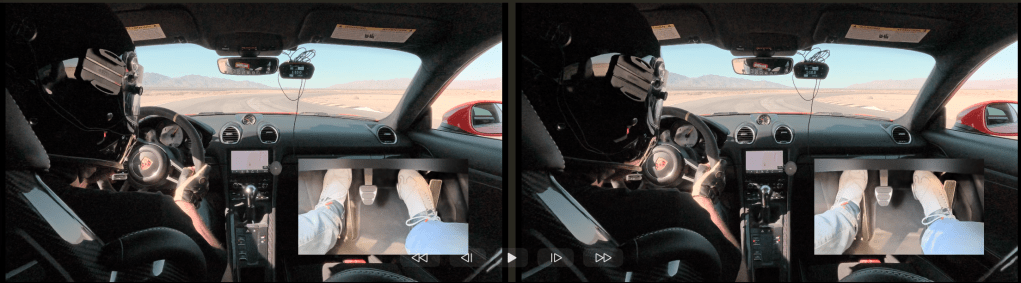
The Video Panel is hidden by default. When the session has an associated video file, use the video-panel button, the View menu, or the platform toolbar/ornament to show it. If the selected session has no video, the video control is disabled.
Playback and scrubbing are synchronized with the chart playhead and map car position. When two laps are selected, the faster lap is shown on the left and the slower lap is shown on the right.
Videos can be linked from Photos or from Files. Photos-based videos are the best option for cross-device use because iCloud Photos can make the asset available on other devices. File-based videos depend on the original file location and security-scoped bookmark remaining available.
If a Photos video is stored in iCloud Photos and is not yet local, onTrackTools shows a loading state and retries the request. If Photos access is limited, the app may ask you to grant access to the selected video or open Settings.
Create/Import Session Data
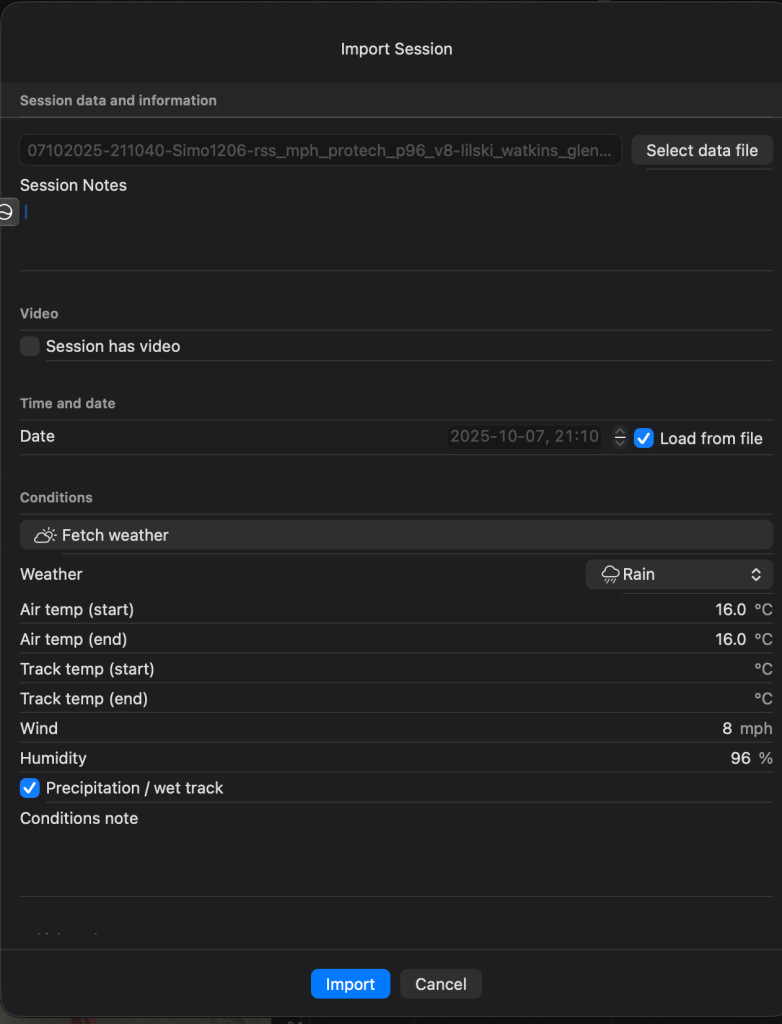
The Create/Import Session Data sheet creates a new session from a telemetry file. The sheet can be opened from Add Session, File > Add Session on macOS, or by opening a supported telemetry file directly on macOS.
Since version 1.4.0, it is also possible to create “empty” sessions without attaching any telemetry file. This gives the user the opportunity to create a session trackside, adding notes and car configuration and setup before having a telemetry file available.
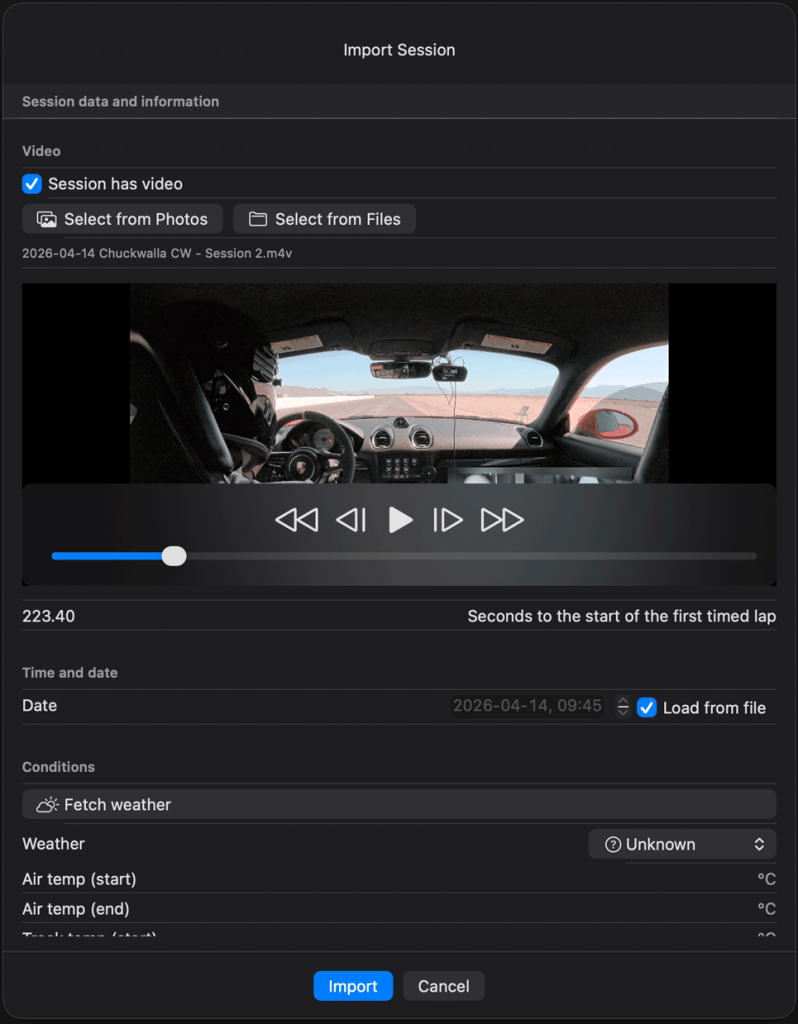
Supported Data Files
- VBO:
.vbotelemetry files remain supported. - LD:
.ldlog files can be imported. Logged channels in the file become dynamic chart traces.
For .ld files that do not contain GPS coordinates, onTrackTools may reconstruct and align the session path against a detected track using available simulator/world-position data. If no complete lap can be found, it may estimate GPS coordinates from the full session and warn that accuracy may be reduced.
Data File and Session Metadata
- Data File: select the telemetry file. After a valid file is selected, the GPS/track preview appears.
- Description: add notes or a short label for the session.
- Date: keep Load from file enabled to use the timestamp from the file, or disable it and set the date manually.
Automatic Track Detection
After a file is loaded, onTrackTools attempts to match the session to existing tracks and to the built-in track library. A successful match selects the detected track automatically and displays an Auto-detected message. You can also use Detect manually after changing the data file or track selection.
If a built-in track is detected, onTrackTools materializes it in your local database so the imported session can use it like any other track.
Video
- Session has video: enable this when you want synchronized video.
- Photos: choose a video from the Photos Library.
- Files: choose a video file from local or cloud file storage.
- Offset: set the timestamp where the car crosses the start line for the first timed lap. Use the preview playback controls to find the crossing.
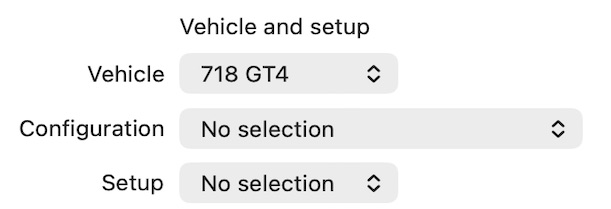
Vehicle and Setup
If you use Garage, you can link the imported session to a vehicle, vehicle configuration, and setup. onTrackTools creates session-scoped copies of linked configurations and setups so the historical session remains stable even if the base Garage records are changed later.
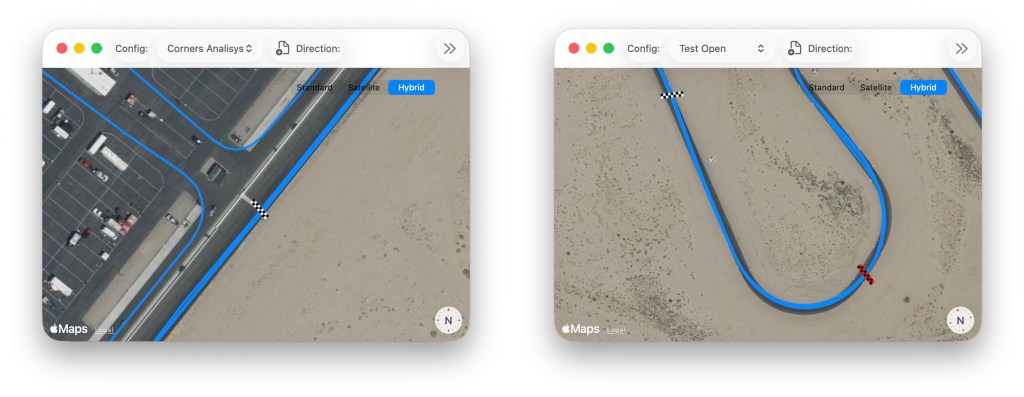
Track and Configuration
- Track: choose an existing track, use an auto-detected track, select a built-in library track, or create a new one.
- Track Name: required when creating a new track.
- Track Config: choose an existing configuration or create a new one.
- Config Name: required when creating a new configuration.
- Direction: choose clockwise or counter-clockwise when creating a new configuration.
- Open Course: enable when the data is point-to-point instead of a closed circuit. Open-course configurations use separate start and finish markers.
When creating a new track or configuration, drag the start/finish marker in the preview map so it crosses the driven GPS path. Accurate marker placement is essential for accurate lap timing.
Import Validation
The Import button is enabled only when the required file, track, configuration, and video selections are valid. If the button is disabled, check for missing names, missing file selections, or an enabled video option without a selected video.
Session Details and Track-Day Planning
The Session Details view collects everything about a session in one place. With a session selected, use the Details toolbar button to flip the workspace between the analysis view and Session Details; flip back at any time — the analysis state is preserved.
- Edit the session description and date.
- Capture, review, and edit the session’s structured notes — see Session Notes.
- Add, replace, or manage the session’s data files — including attaching telemetry to a session created empty.
- Manage videos: add, replace, or remove synchronized video, with the ability to revert changes before saving.
- Preview and change the track and track configuration assigned to the session.
- Assign or change the Garage vehicle, configuration, and setup, and open their editors directly.
- Review the session’s weather conditions.
Session Notes
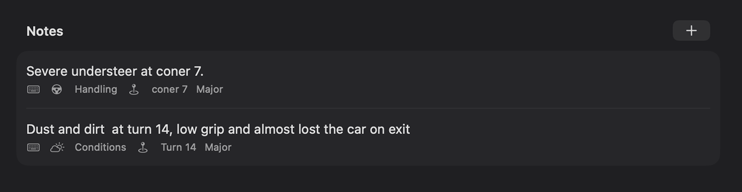
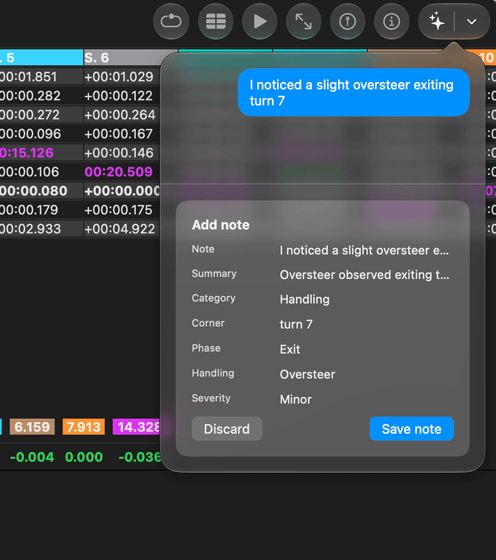
The Notes area of Session Details collects everything you record about a session: impressions dictated through the notes assistant, notes captured hands-free with Siri, and notes typed manually with the + button. Each note appears in the list with its one-line gist and badges showing how it was captured (typed, voice, or Siri), its category, the corner it refers to, and its severity. Select a note to review or refine it, or delete it from the list.
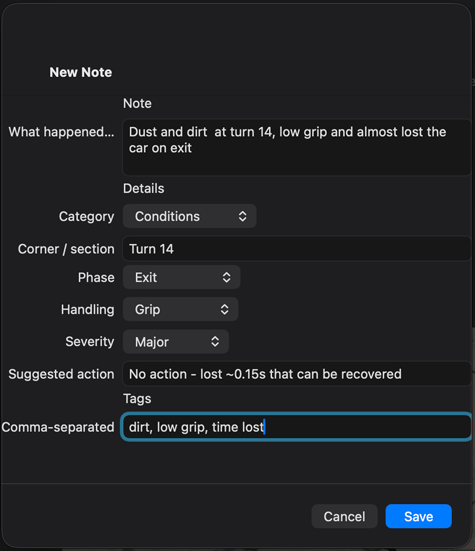
Notes are structured: every note keeps your original words verbatim, and layers optional details on top. When a note is captured through the assistant or Siri, these details are filled in automatically on-device from what you said; anything that does not fit the structure survives in the note text, so a classification can never lose information. You can always adjust the details by hand in the note editor:
- Category: Handling, Setup Change, Incident, Tyres, Brakes, Powertrain, Conditions, Driver, Logistics, or Other.
- Corner / section: a free-text place reference, such as “the fast right after the back straight”.
- Phase: Braking, Entry, Mid-Corner, Exit, or Straight.
- Handling: Understeer, Oversteer, Instability, Snap, Grip, or Balance.
- Severity: Minor, Moderate, or Major.
- Suggested action and tags: what to try next, plus free-form keywords for anything else.
Empty Sessions – Plan Before You Drive
A session can be created without any telemetry data — useful for preparing a track day in advance or logging information while you are still at the track. Create an empty session from the import sheet, fill in the vehicle, configuration, setup, conditions, and notes, then attach the telemetry file and video later from Session Details. Once data is attached, the session behaves like any imported session.
Automatic Weather
onTrackTools retrieves the weather conditions for every session automatically from Apple Weather, based on the session’s location and date. Conditions appear in the session list rows and in Session Details. Existing sessions without weather information are backfilled automatically; a manual backfill control is also available in Settings. Weather data is provided by Apple Weather (attribution is shown in the app’s About view). Note that automatic weather cannot populate all the available fields, e.g. there is no recorded data for track temperature: these fields can’t be automated.
Editing Sessions
The Session details view also lets you update an existing session without re-importing it. Open it from the selected session’s Details button or the Edit->Session Details menu entry on macOS.
- Edit the session description and date.
- Add, remove, or replace synchronized video.
- Change the video source between Photos and Files.
- Adjust the video offset.
- Link or change the Garage vehicle, configuration, and setup for the session.
- Change the track and track configuration assigned to the session.
Changing the track configuration can change lap detection and sector timing. Review the Laps Table after saving session edits.
Track Configuration Editor
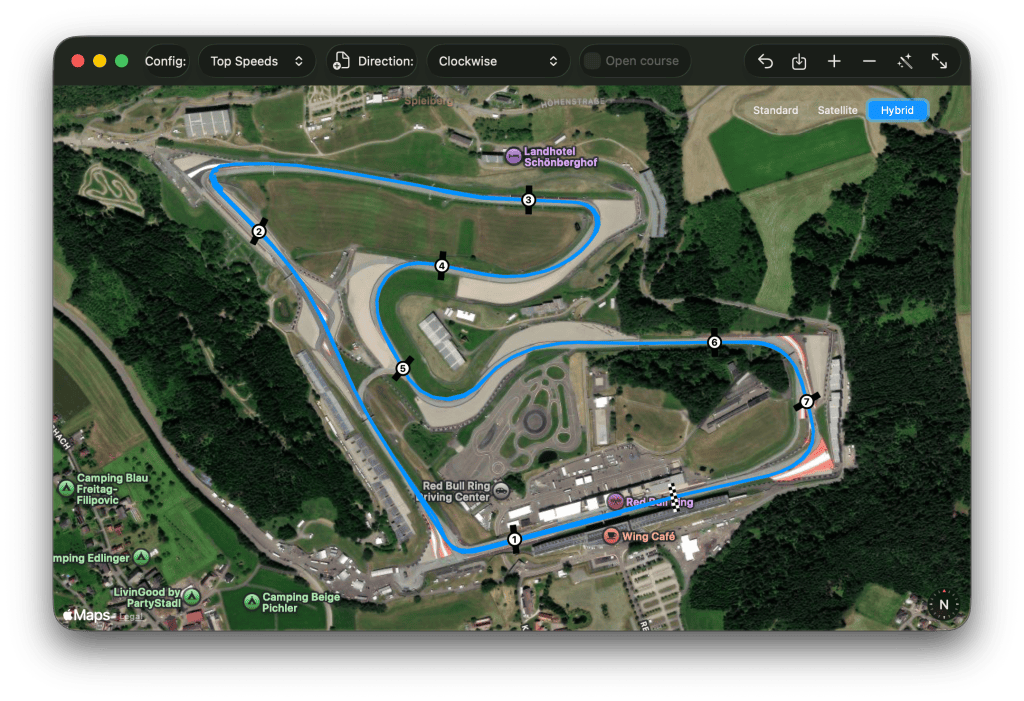
The Track Configuration Editor is used to refine timing markers and sectors for a track configuration. It opens from Edit conf., Edit > Edit track configuration on macOS, the Tracks Manager, or the import flow when creating a new configuration.

From left to right:
- Reset config: return the editable markers to the saved configuration.
- Apply config: save the edited marker positions and recalculate session analysis.
- Add sector: add a sector divider at the current marker position.
- Remove sector: remove the selected sector divider.
- Auto sectors: open automatic sector detection.
- Fit Map: adjust the zoom so that the track map fits the window
Drag start/finish and sector markers on the map to refine timing. Apply the configuration after you finish editing. onTrackTools recalculates lap and sector data for the selected session after the configuration is applied.
Closed Courses and Open Courses
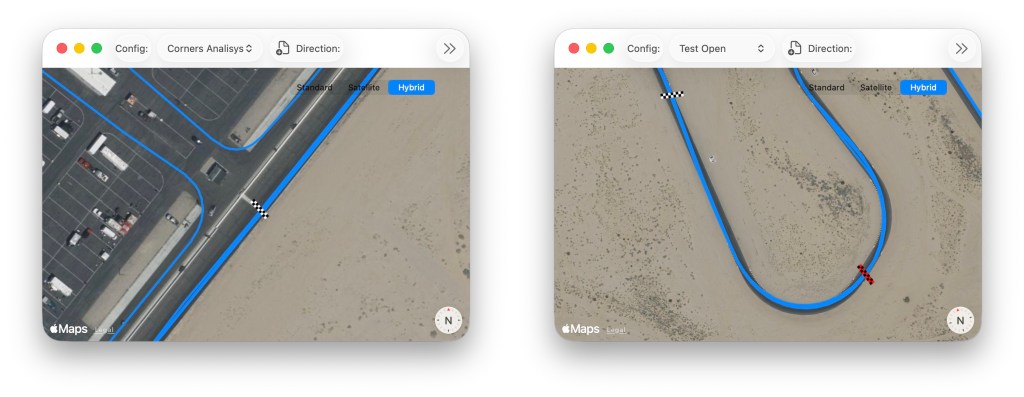
A closed-course configuration uses one start/finish separator. This is the normal mode for circuit laps. An open-course configuration uses separate start and finish separators and is intended for point-to-point data. Open-course configurations require at least two separators.
Automatic Sector Detection
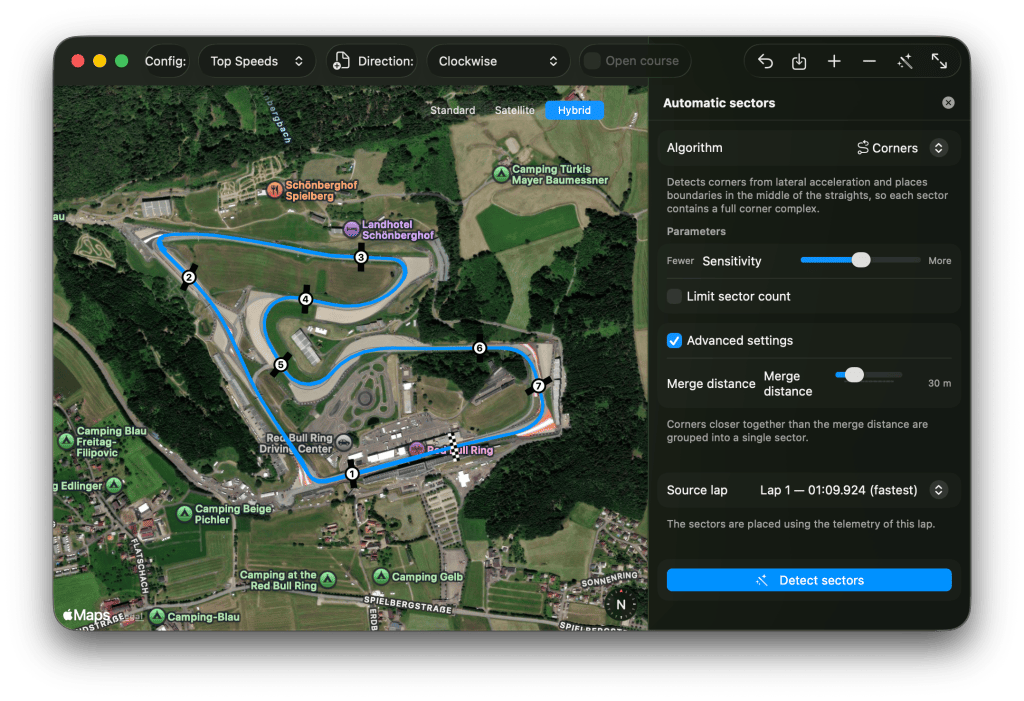
Automatic Sector Detection helps you create sector dividers from a selected complete lap. The result is temporary until you use Apply config, so you can detect, review, drag markers manually, reset, or try a different algorithm before saving.
Open the Track Configuration Editor, then use Auto sectors. The panel appears as an inspector on macOS/iPadOS, a background-interactive sheet on iPhone, and a trailing ornament on visionOS.
Algorithms
- Corners: detects corners from lateral acceleration and places boundaries in the middle of the straights so each sector contains a corner complex.
- Braking zones: detects sustained braking and places boundaries just before each braking point so each sector starts with corner entry.
- Speed peaks: places boundaries at speed peaks reached at the end of each straight.
- Equal distance: splits the lap into sectors of equal length.
Parameters
- Sensitivity: higher sensitivity detects weaker features and generally produces more candidate sectors.
- Limit sector count: keeps only the most significant boundaries up to the selected sector count.
- Sectors: sets the target count for equal-distance sectors, or the limit when sector count limiting is enabled.
- Advanced settings: tune corner merge distance, speed peak offset, or braking boundary offset depending on the selected algorithm.
- Source lap: choose the complete lap whose telemetry will be used to place sectors.
If required data is missing, onTrackTools shows an availability note and uses fallback signals where possible. Automatic sector detection needs position and speed data, and some methods work best with lateral acceleration, longitudinal acceleration, or heading.
After detection, inspect the placed separators on the map. Drag any separator to refine it, then use Apply config to save or Reset config to discard.
Tracks Manager
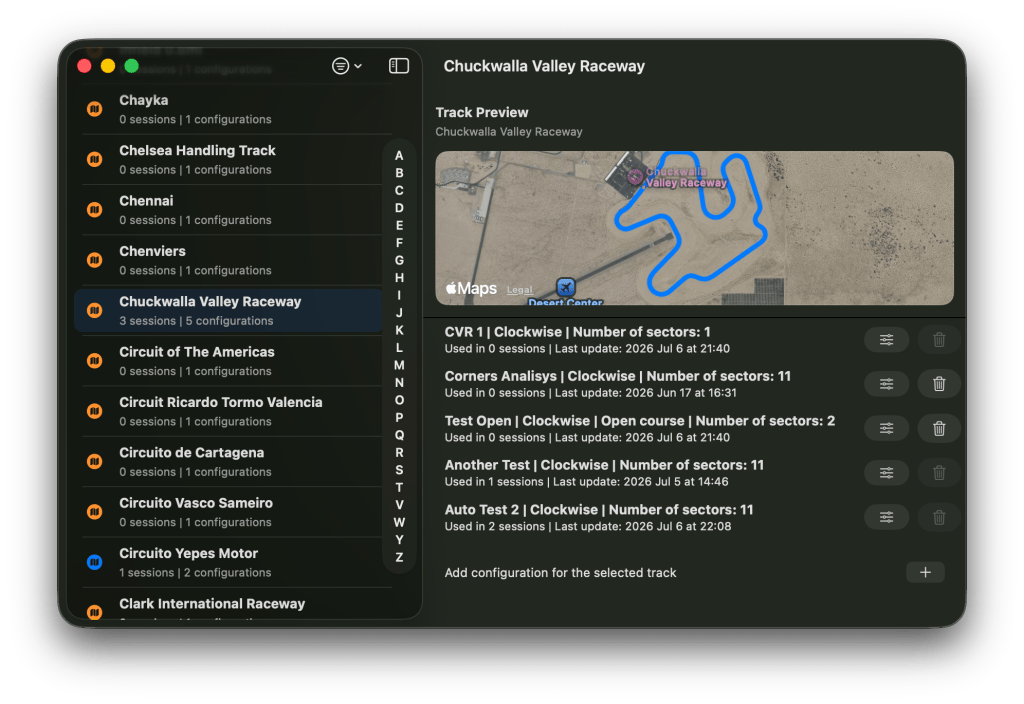
Tracks Manager shows both user-created tracks and the built-in track library. You can browse tracks before importing telemetry, materialize a built-in track by selecting it, and manage configurations for tracks already in your database.
- Use Filters to show or hide user-defined tracks, the built-in library, or tracks without sessions.
- Use the search field to filter tracks by name.
- Use the quick-jump side bar when the track list has many alphabetical sections.
- Select a built-in track to materialize it locally and view its configurations.
- Rename a user-defined track by double-clicking its name on macOS or using the context menu.
- Delete a track only when no sessions are linked to it.
- Select a track to see its configurations, direction, sector count, session usage, and last update date.
- Rename a configuration by double-clicking its name on macOS or using the context menu.
- Edit a configuration with the slider/control button.
- Delete a configuration only when no sessions are using it.
- Add a configuration with the Add row at the bottom of the selected track’s detail view.
If a track is missing its reference lap or has a corrupted configuration, Tracks Manager shows a repair banner. Use the repair action to rebuild or reset what can be recovered.
Garage
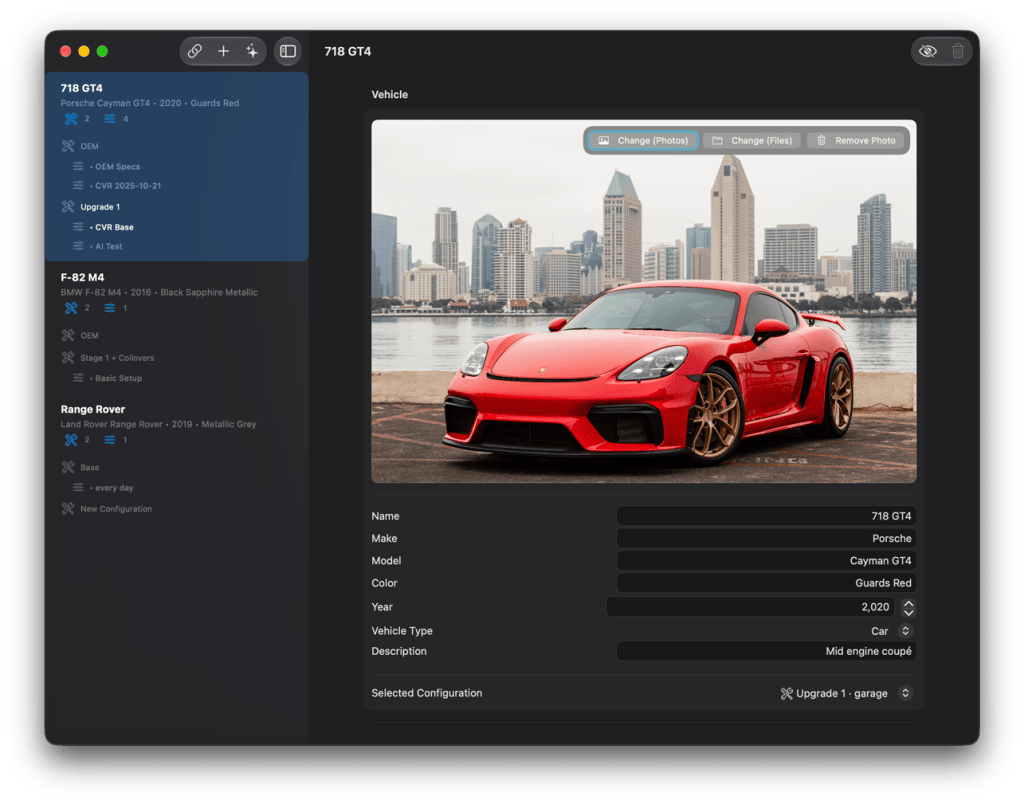
Garage manages vehicles, vehicle configurations, and setups. It helps you keep a record of the car and setup used for each session, then link those records to imported telemetry.
Vehicles
A vehicle stores a name, make, model, color, year, vehicle type, description, and optional photo. Add a vehicle with New vehicle. The new vehicle starts with a base configuration and default configuration elements for its vehicle type.
- Add or change a vehicle photo from Photos or Files.
- Set the current active configuration with Set Active.
- Delete a vehicle only when none of its configurations or setups are linked to sessions.
Vehicle Configurations
A vehicle configuration describes the physical or build-level state of the vehicle, such as components, tires, brakes, suspension hardware, or other configurable metadata. The exact element list depends on the vehicle type and the Garage metadata bundled with the app.
- Add Configuration creates a new configuration.
- Clone Selected creates a copy of the selected configuration, optionally carrying over the selected setup.
- Set Active marks the selected configuration as the vehicle’s current configuration.
- Remove Selected deletes the selected configuration and all of its setups after a confirmation. A configuration used by one or more sessions cannot be deleted; a warning explains why.
- Show disabled displays disabled configuration elements.
- Add Element adds an allowed configuration element when dependencies and multiplicity rules permit it.
Configuration elements may have units, numeric limits, steps, enum choices, and dependency rules. Disabled elements can be hidden or shown from the Garage toolbar.
Setups
A setup is tied to a vehicle configuration and describes adjustable values used for an event or session, such as setup ranges, values, or per-corner/per-axle entries. Setup elements are created from the Garage metadata and can be associated with enabled configuration elements. Elements with per-corner or per-axle dimensions always show their instance (front left, front right, rear, …) on the row, so identical names are never ambiguous.
- Add Setup creates a setup for the selected configuration.
- Clone Selected copies the current setup.
- Remove Selected deletes the selected setup and its elements after a confirmation. A setup used by one or more sessions cannot be deleted.
- Add Element adds an allowed setup element.
- Some setup elements appear or disappear depending on the enabled configuration elements.
Session-Linked Configurations and Setups
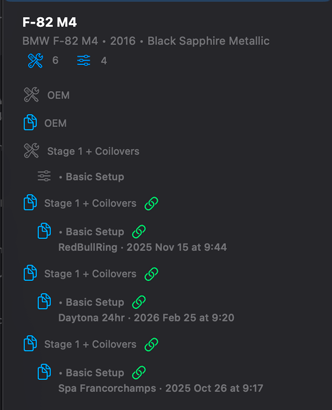
When you link a session to a Garage configuration or setup during import or session editing, onTrackTools creates a session-scoped copy. This protects the historical session from later changes to your base Garage configuration. Use Show session-linked in Garage to reveal or hide these session-specific copies in the Garage list. Session-linked items are marked in the list with a link badge and a context line identifying the session they belong to.
Manage with AI
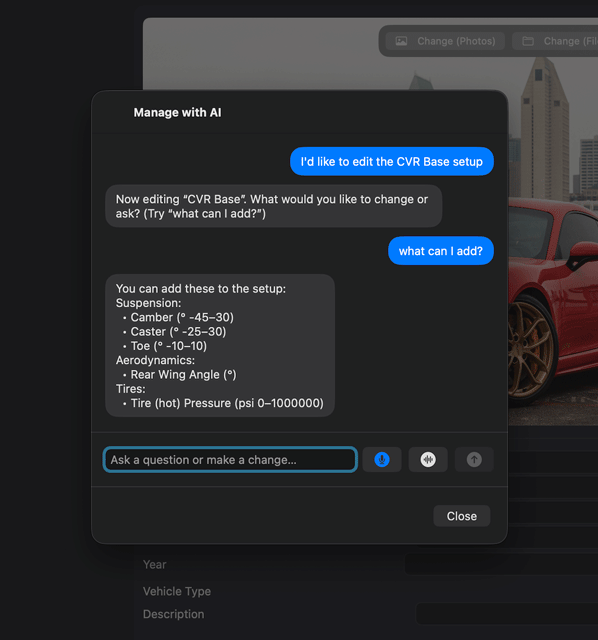
On devices with Apple Intelligence, the Manage with AI (sparkles) button opens the Garage assistant: create and edit vehicles, configurations, and setups conversationally, or ask about current and past values. The button is available in the Garage and in every configuration/setup editor, including editors opened from a session. See AI Assistants.
AI Assistants
onTrackTools includes three AI assistants powered by Apple Intelligence. All processing happens on-device: nothing you say or type is sent to a server. The assistants require a device that supports Apple Intelligence running iOS/iPadOS 26, macOS 26, or visionOS 26 or later; on other devices the assistant buttons show an explanation and the equivalent manual flows remain available.
Session Notes Assistant
Open the assistant from the sparkles button in the session toolbar. Dictate or type your impressions right out of the car — “understeer in turn 3, brakes went long at the end of the stint” — and the assistant turns them into structured notes attached to the selected session, filling in the category, corner, phase, handling, and severity fields automatically while keeping your original words (see Session Notes). It can also answer questions over your own logbook, such as “what pressures did I run here last time?”, retrieving the answer from your sessions, notes, and Garage data.
Garage Assistant (Manage with AI)
The Garage assistant edits and queries your Garage in natural language: “add a wet setup with 26 psi fronts”, “set the front tire pressures to 28.5”, “what can I add?”, “what’s the current camber?”. Values can be set per corner or per axle (“38 for the front and 42 for the rear”). The assistant echoes every change back for confirmation before applying anything, and edits to session-linked configurations or setups go through an extra gate: Cancel, Edit a copy instead, or Change anyway.
Math Channels Assistant (Create with AI)
Describe the calculated channel you want — “combined G force from lateral and longitudinal acceleration” — and the assistant writes the formula, maps each variable to a signal available in the selected session, and shows a review card of the variable-to-signal mapping with warnings before creating the channel. You can iterate on the result conversationally, and modify an existing channel by creating a refined copy.
Voice Mode (Hands-Free)
Every assistant supports a hands-free voice conversation: tap the voice-mode (waveform) button in the assistant’s input bar, speak, and the assistant replies out loud, then listens again. Speech recognition runs on-device and is biased with the app’s live motorsport vocabulary — element names, your vehicles and setups, and common track terms — so dictation of technical phrases is reliable. Say “exit voice mode” or “stop listening” to end the loop; the assistant also leaves voice mode after prolonged silence. A setting lets assistants start directly in voice mode (see App Settings).
Siri and Spotlight
Sessions, session notes, vehicles, configurations, and setups are indexed for system search, so they can be found from Spotlight, including semantic search on devices with Apple Intelligence. Spotlight indexing and search work on macOS 15, iOS/iPadOS 18, and visionOS 2 or later, and opening a result takes you straight to the matched item – the session, note, car, configuration, or setup itself. App Intents let you act without opening the app:
- Open session: jump straight to a session from Siri or Spotlight.
- Show setup: display a Garage setup.
- Create session: create a new (empty) session by voice.
- Capture note and Find notes: record and retrieve session notes.
- Change setup value: set a value in one of your setups by voice (e.g. a tyre pressure). The change is read back and applied only after you confirm.
App Settings
Settings are available from onTrackTools > Settings on macOS, the Settings section on iPad, and the Settings sheet on visionOS. On iOS, settings also include subscription management and a link to the online help.
Weather
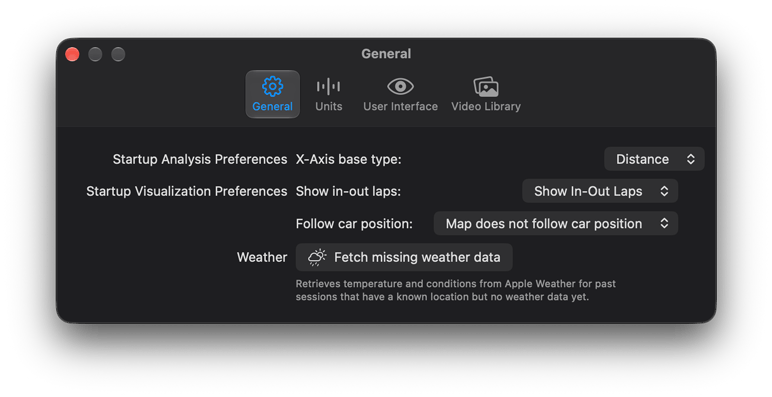
Weather is retrieved automatically for every session. The general settings include a backfill control that fetches missing weather conditions for all existing sessions at once.
General Preferences
- X-Axis base type: choose Time or Distance as the startup chart comparison mode.
- Show in-out laps: choose whether entry and exit laps are visible at startup.
- Follow car position: choose whether the map follows the synchronized car marker at startup. During an app run, onTrackTools restores follow-car state per selected session set.
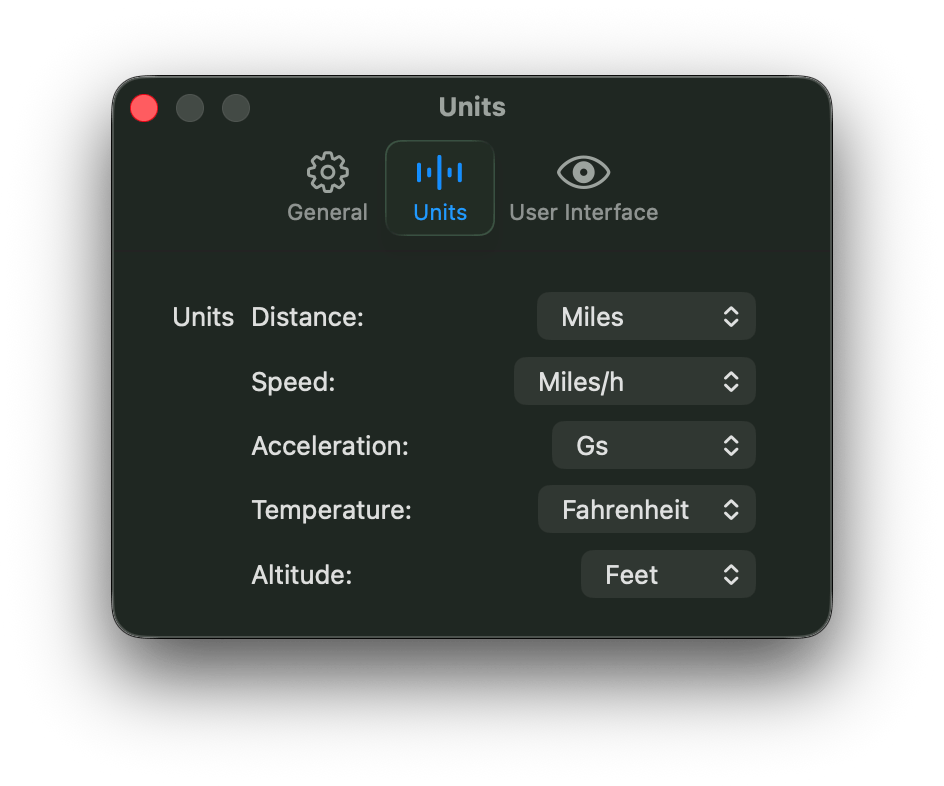
Units Preferences
- Distance: meters, kilometers, yards, feet, or miles.
- Speed: kilometers/hour, miles/hour, meters/second, feet/second, or yards/second.
- Acceleration: Gs, meters/second squared, feet/second squared, or yards/second squared.
- Temperature: Celsius, Fahrenheit, or Kelvin.
- Altitude: meters or feet.
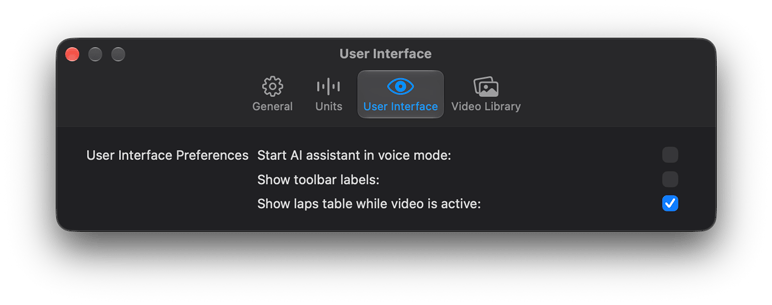
User Interface Preferences
- Show toolbar labels: show or hide text labels next to toolbar icons where supported. On macOS this uses the system’s native icon-and-label toolbar style.
- Show laps table while video is active: keep the lap table visible below video when the video pane is open.
- Use Volumetric Map on visionOS: enables the separate volumetric track map window.
- Voice mode: start the AI assistants directly in hands-free voice mode.
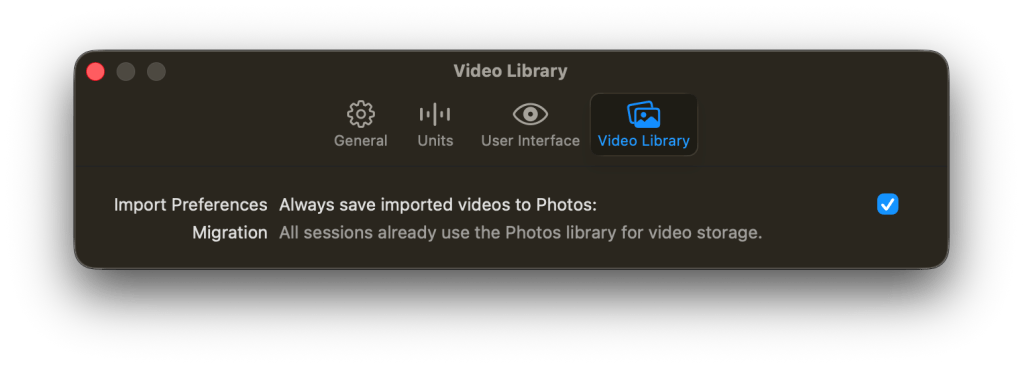
Video Library
Enable Always save imported videos to Photos when you want file-selected videos to be copied into the Photos Library during import. Use Migrate to Photos to convert sessions that still use local file references. Migrating to Photos improves cross-device video resolution through iCloud Photos.
Subscriptions and Store
The free version is limited to the import and/or analysis of a single session. To import and manage multiple sessions, purchase a subscription or lifetime license from the onTrackTools Store.
- Monthly subscription: full-version entitlement while the subscription is active.
- Yearly subscription: full-version entitlement while the subscription is active.
- Lifetime purchase: one-time non-consumable purchase for full-version entitlement.
- Restore Purchases: use this if your entitlement is not recognized after reinstalling, changing devices, or signing in again.
On iOS and visionOS, the Store view includes links to the Apple standard license agreement and the LVSoftware.io privacy policy. If App Store products cannot be loaded, the Store shows a retry-later message.
visionOS Features
Analysis Ornaments
On visionOS, the session list and analysis controls are displayed as spatial ornaments. The analysis ornament includes controls for video, entry/exit laps, time/distance comparison, traces, Math Channels, and either the volumetric map or regular map controls depending on settings.
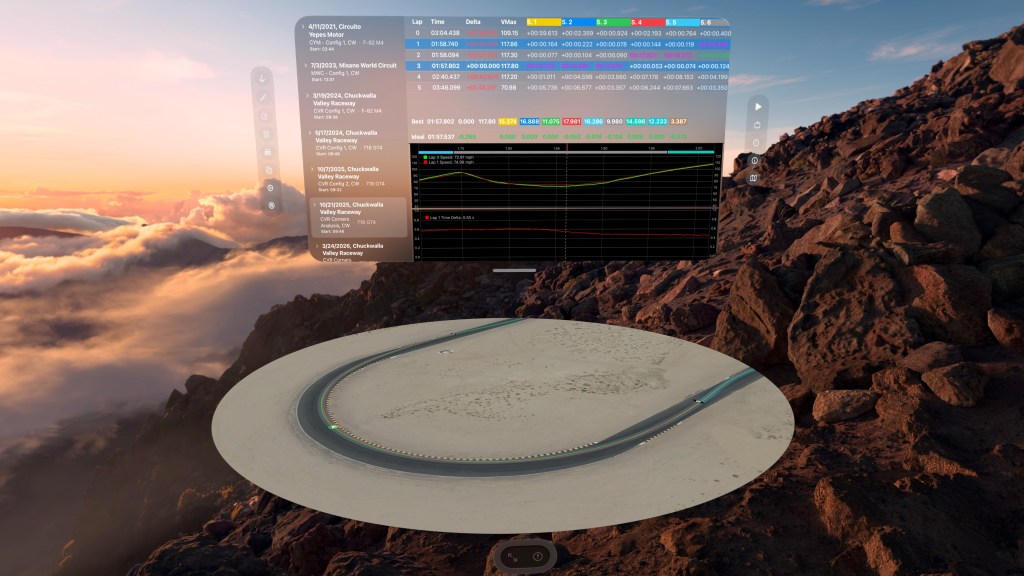
Volumetric Track Map
If Use Volumetric Map is enabled in Settings, the analysis ornament can open the Track map volume. The volumetric map shows the same synchronized trace/map data in a circular spatial presentation. Its ornament includes Fit map to volume and Follow car position.
Troubleshooting
The Import button is disabled
- Confirm that a supported telemetry file is selected:
.vboor.ld. - If creating a new track, enter a track name.
- If creating a new configuration, enter a configuration name.
- If Session has video is enabled, choose a valid video from Photos or Files.
No laps were detected
- Verify that the selected track configuration matches the session.
- Check that the start/finish marker crosses the driven GPS path.
- For open-course sessions, verify both start and finish markers.
- Open the Track Editor, adjust the markers, apply the configuration, and try again.
- For
.ldimports, confirm that the file contains enough usable samples and that track alignment succeeded.
Automatic track detection did not choose a track
Track detection requires enough valid movement samples and a candidate track that matches the imported path. Choose a track manually, then adjust the configuration if needed. For .ld files without GPS data, check that the file metadata or driven shape can be aligned to a known track.
A session cannot be selected with another session
onTrackTools filters multi-session selection to compatible sessions only. The sessions must use the same track and same direction. If a session is removed from the selection, check its assigned track and track configuration in Session Details.
Expected chart traces are missing
The trace selector only shows supported channels present in the selected session set. If multiple sessions are selected, each trace must be present in all selected sessions. Logged channel names may vary by logger or simulator export.
A Math Channel does not appear in the trace selector
- Confirm that the Math Channel is enabled.
- Open the Math Channels library and check the validation status.
- Make sure every input can be matched for the selected session or session set.
- Use aliases or a per-session override when the source file uses a different channel name.
- If multiple sessions are selected, the Math Channel must resolve for all selected sessions.
A Math Channel evaluates but looks wrong
- Check input units and expected units.
- Check whether the input is a built-in trace or a logged channel with a different scale.
- Use Current Session Preview for diagnostics about missing inputs or invalid samples.
- Use Expression Reference to confirm function names and argument counts.
Automatic sectors did not find boundaries
- Choose a complete source lap with enough samples.
- Try a higher sensitivity.
- Try a different algorithm. Equal distance is the most predictable fallback.
- Some algorithms work best when lateral acceleration, longitudinal acceleration, or heading are available.
- After sectors are placed, remember to use Apply config to save them.
Video is not available or does not load
- Open Session Details and confirm that Session has video is enabled.
- If the video is from Photos, confirm that onTrackTools has Photos access.
- If Photos access is limited, include the required video in the app’s allowed selection or grant full Photos access.
- If the video is stored in iCloud Photos, wait for it to sync or use the Retry button.
- On visionOS, if a Photos asset has not synced to the device, re-link the video from iOS or macOS after the video is available in Photos.
- If the video was linked from Files and the file moved or the bookmark expired, reselect the file in Session Details.
Subscription is not recognized
Open the onTrackTools Store and use Restore Purchases. The app verifies entitlements at launch and may briefly show Verifying purchases… while StoreKit checks current transactions.
iCloud is unavailable
If CloudKit cannot be opened, onTrackTools shows iCloud Unavailable – Using Local Store and continues locally. Check that you are signed into iCloud, that iCloud Drive/CloudKit services are available, and that network access is working. Data created while using local storage may not appear on other devices until iCloud is available again.
A large session does not appear on another device
Large telemetry sessions use compressed storage in the current app. Make sure all devices are updated to the current App Store version. Then leave the source device open long enough for CloudKit to upload and the receiving device open long enough to import the update.
A track configuration cannot be deleted
A configuration cannot be deleted while sessions use it. Reassign or delete those sessions first. The Track Editor delete flow replaces affected sessions with a default configuration when possible, but the Tracks Manager delete button is disabled for configurations currently in use.
A vehicle cannot be deleted
A vehicle cannot be deleted while its configurations or setups are linked to sessions. Remove or edit the session links first.
For additional support, use the contact page at lvsoftware.io/contact-us/.

